PREVIEW
NextLevelXR 1.4.1 · in testing
NextLevelXR: the VR mod that spends your GPU where you actually look
18 October 2026 · Gary Bowman
A standalone OpenXR mod from Next Level Sim Gaming and Elhydro. It trims the parts of the VR image you never look at in a cockpit and puts the saved GPU power back into a sharper picture. It doesn't use the OpenXR Toolkit at all, and replaces it.
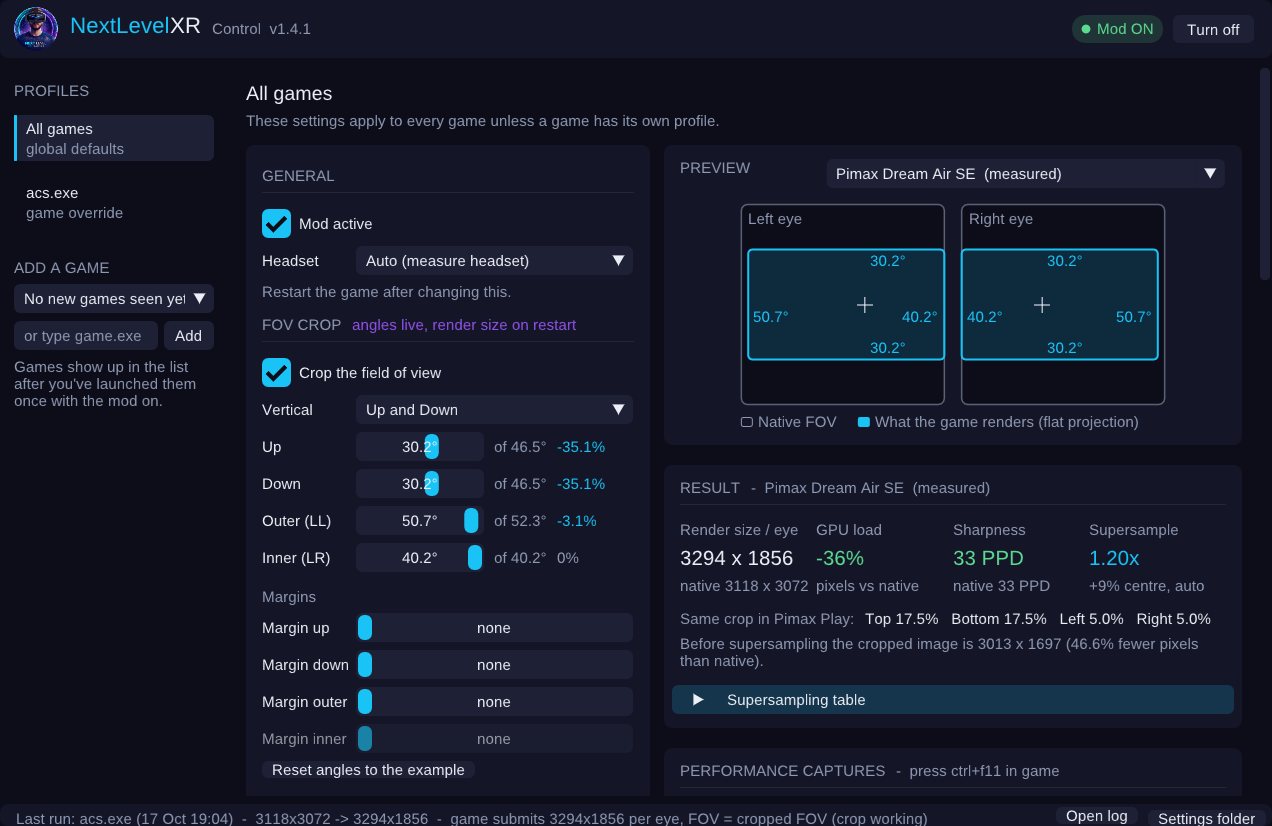
No OpenXR Toolkit. NextLevelXR replaces it.
NextLevelXR does not use the OpenXR Toolkit in any way. It's its own standalone OpenXR layer: you don't need the Toolkit installed, and none of its code is inside. For sim racing it's a complete replacement for what most of us used the Toolkit for, and it adds things the Toolkit never had.
- FOV crop: every edge set on its own, both eyes always identical, plus visor categories by car type and per-edge margins.
- Resolution and supersampling: the render size is cut to match the crop, sharpness is shown as "centre sharpness", and Auto SS finds what your GPU can hold.
- Sharpening: Pop adds adaptive sharpening and mid-tone clarity, without halos.
- FPS overlay: FPS, CPU and GPU frame times in the headset, plus CSV captures.
- New, not in the Toolkit: a helmet view with real per-eye depth, 3D Boost, and a Windows app to set it all per game.
NextLevelXR doesn't do upscaling (NIS / FSR), foveated rendering or hand tracking. If you rely on one of those, tell us on the Discord. Whatever you use, run only one FOV-cropping tool at a time, or the image gets cropped twice.
The problem: pixels you never see
Every VR headset renders a tall, wide picture for each eye. In a sim rig most of the top of that picture is roof lining and most of the bottom is your own knees, but the GPU still draws every pixel of it, every frame. That's frame time you could be spending on the track in front of you.
The edges are also the most expensive part. The way a VR image is projected packs pixels most densely at the edges, so cutting a little off the top and bottom saves far more work than you'd expect.
What NextLevelXR does
NextLevelXR is an OpenXR layer: it sits between the sim and your headset and quietly changes three things.
- It crops the field of view. You choose how far up, down, out and in the view goes. Each edge is set on its own and both eyes always get the same crop, mirrored.
- It shrinks the render size to match. The game is asked for a smaller image, worked out in the same flat projection it draws, so the frame really gets cheaper rather than just being masked.
- It puts the savings back into sharpness. Supersampling raises the resolution of what's left. Because the crop keeps the pixels in the middle of your view exactly as dense as native, sharpness is shown as simple "centre sharpness": 0% is native, +10% is sharper.
On a Pimax Dream Air SE with its example crop, the game renders about 46% fewer pixels before supersampling. With Auto supersampling bringing sharpness back to native, it's still about a third fewer pixels than the headset's native picture. Those are calculator figures; in-game results are coming once testing finishes.
Crop by the car you drive
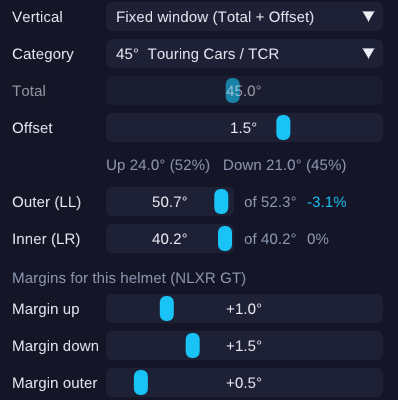
An F1 car and a rally car don't need the same view. NextLevelXR's visor categories set the vertical view for the type of car, from a 25° slot for open-wheelers up to 60° for an open visor, with 45° for touring cars as the default. An offset of up to ±5° slides that window up or down for your seat height without changing the render size.
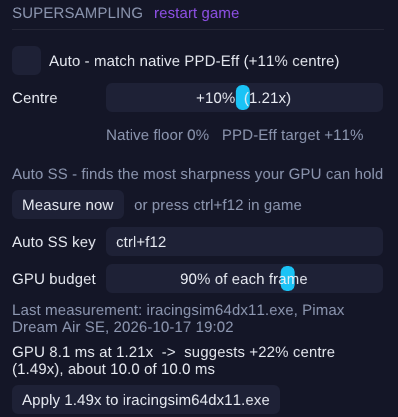
Auto SS: the most sharpness your GPU can hold
The right supersampling level depends on your GPU, the sim, the weather and how many cars are on track. So instead of guessing, NextLevelXR measures. Drive on track, press Ctrl+F12, and for ten seconds it times the GPU at your current settings. It then suggests the highest sharpness that fits about 90% of each frame, and one click saves it for that game.
A helmet that sits on your head
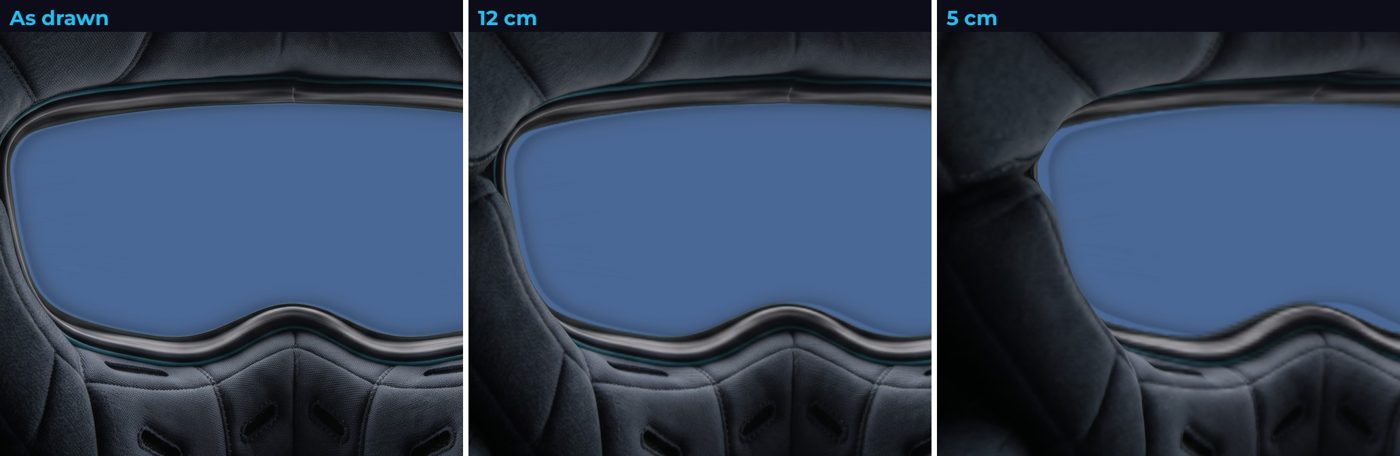
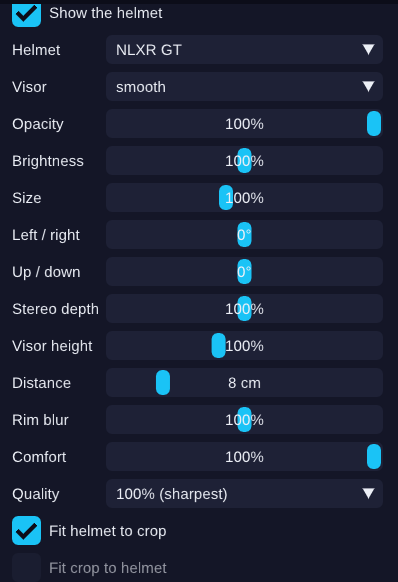
The helmet view draws a racing helmet around your view, separately for each eye so the brow and padding have real depth. In 1.4.1 the helmet becomes a 3D shell you can bring as close as a few centimetres: each eye sees the rim from its own position using your real IPD, and the rim softens as it comes closer, because your eyes never focus on the edge of a real helmet either.
It also works the other way round. Fit helmet to crop sizes the visor opening to your crop, so the helmet hides exactly the pixels that were never rendered. The helmet and the performance saving become the same thing.
3D Boost and Pop
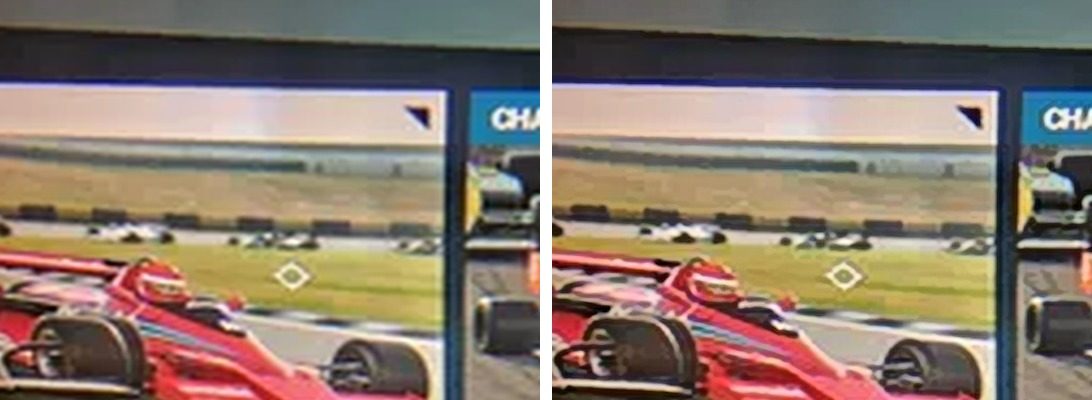
3D Boost renders the game with your eyes slightly further apart, so the cockpit and track stand out in stronger 3D. It costs nothing, and the headset still gets your real eye positions. Pop adds adaptive sharpening and mid-tone clarity without halos, and switches itself completely off when you don't use it.
See what it's doing
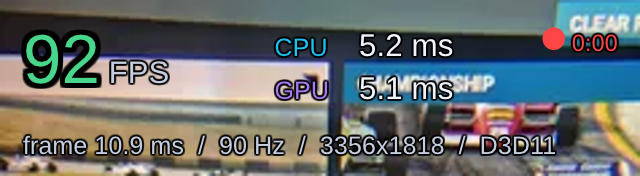
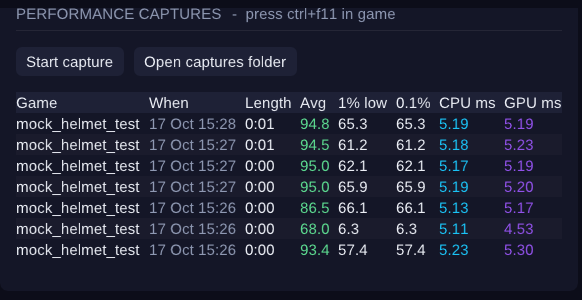
A transparent panel in the headset shows FPS and CPU and GPU frame times (Ctrl+F10), and Ctrl+F11 records every frame to a CSV so you can compare settings lap for lap.
Which sims?
Native OpenXR sims such as iRacing, Assetto Corsa EVO and Le Mans Ultimate, plus ATS and ETS2 with the -openxr launch option. Assetto Corsa and AMS2 work through OpenComposite. The helmet, Pop and the FPS panel work in Direct3D 11 and 12 games.
What's next
NextLevelXR 1.4.1 is with the team for testing now: real headsets, real sims, before-and-after captures. When it's ready this post will get the download, the full user guide, a video and the numbers from those captures.
Looking for the Elhydro Custom FOV & Helmet Mod? It has its own page. NextLevelXR is a separate, standalone mod.
NextLevelXR and NextLevelXR Control. Copyright © 2026 Next Level Sim Gaming and Elhydro. All rights reserved. Developed by Next Level Sim Gaming and Elhydro; FOV crop, supersampling and helmet design in collaboration with Elhydro. NextLevelXR is free software, provided "as is", without warranty of any kind. Only use one FOV-cropping tool at a time, and check your sim's rules on VR tools before racing online.