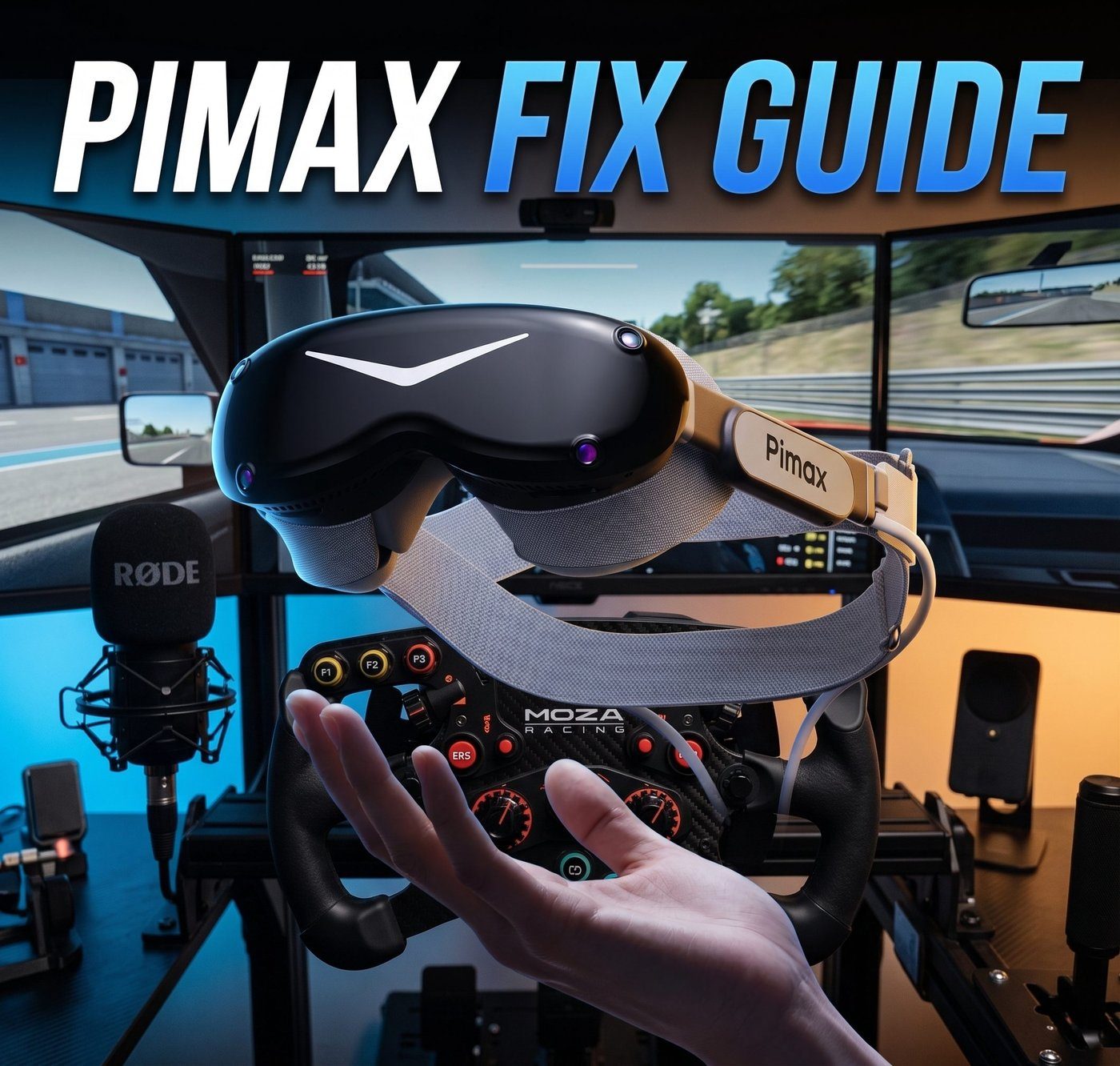
Free for Discord membersThis guide began life as a PDF written for the Next Level Sim Gaming Discord, alongside deeper references like the PrimaShock crop & supersample calculators. The Discord is where new editions land first, where corrections get credited, and where someone running your exact headset is usually online.
How to use this guide
Two halves. Part One is the clean setup — the order to install and configure a Pimax headset on a sim rig, which on its own prevents most of the faults in Part Two. Part Two is the fix list, sorted by what you're actually seeing rather than by what's technically wrong, because when the screens are black you don't yet know which it is.
The single most useful thing to understand before you start: almost every Pimax fault is software, a cable seat, or a USB problem. Genuinely dead hardware is rare. Work through the list in order and resist the urge to skip to the exotic causes.
The current line, and why it matters here
Several of the fixes below depend on which headset you own — eye tracking, IPD adjustment and panel behaviour all differ across the range.
| Headset | Panel | Eye tracking / DFR | IPD |
|---|---|---|---|
| Crystal Light | LCD, glass aspheric | No — use fixed foveation | Manual wheel |
| Crystal Super QLED | QLED w/ local dimming | Yes — dynamic foveation | Motorised, manual |
| Crystal Super Micro-OLED | Sony micro-OLED | Yes — dynamic foveation | Motorised, manual |
| Dream Air | Sony micro-OLED | Yes — dynamic foveation | Motorised, manual |
| Dream Air SE | Sony micro-OLED | Yes — dynamic foveation | Motorised, manual |
Both Crystal Super optical engines are swappable, so a Super can change panel type without changing headset — if you've had the engine out, treat it as a new install and re-run Part One.
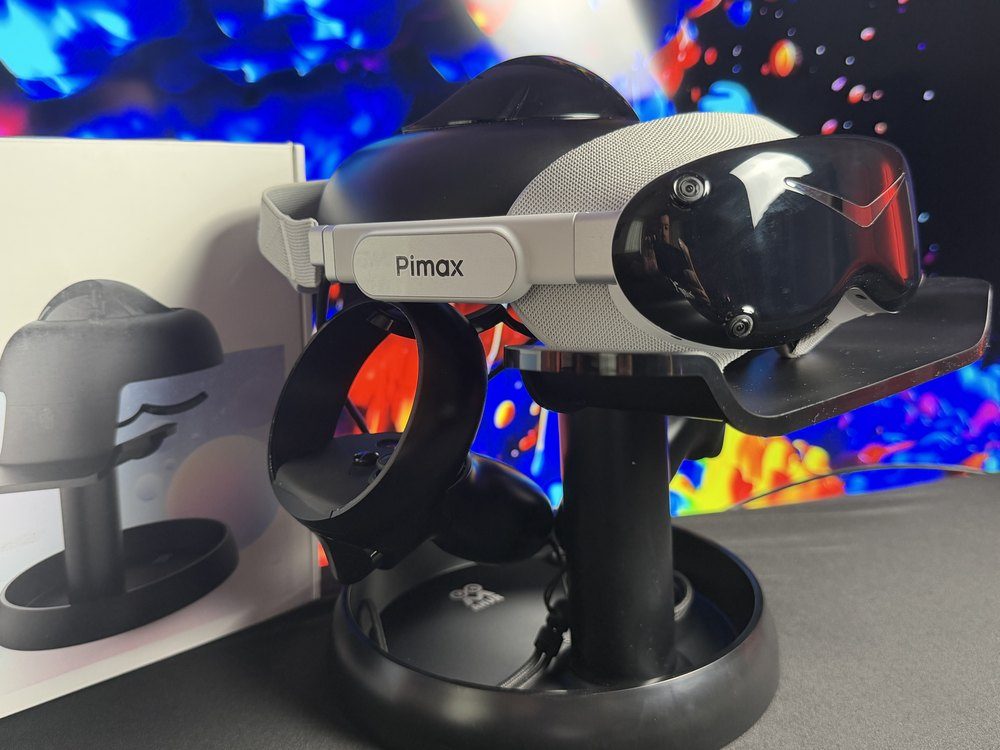
StopIf your Pimax Play is still on a 1.4x build, stop and update before troubleshooting anything else. Half the faults people report in the Discord are already fixed in a later build, and mixing an old client with current firmware creates problems of its own.
The clean setup
Do these in order. It takes about half an hour on a fresh PC and it is the difference between a headset that just works and one you fight every weekend.
1 // Before you plug anything in
Pimax firmware has published driver floors — NVIDIA 576.80 or newer, AMD 25.8.1 or newer. Below those you get compatibility faults that look exactly like hardware faults.
If you have the old standalone PimaxXR control centre or OpenXR Toolkit installed from a previous setup, uninstall both. They write the same Windows OpenXR runtime key that Pimax Play now writes, and running alongside it is the usual reason your runtime keeps flipping back to SteamVR on its own.
v2.0.3 at time of writing. Get it from pimax.com/support/downloads rather than a link in an old forum thread. Rollouts are staged, so the version you're offered in-app may lag the version on the site.
Rear motherboard port, on its own, not a front panel header and not a hub. This matters more on a sim rig than on a desk PC — see section 2.
Disable USB Selective Suspend in Windows power options, and untick "allow the computer to turn off this device" on the USB root hubs in Device Manager. Windows suspending a port to save power on a desktop that's plugged into the wall is a leading cause of mid-session drop-outs. Pimax Play's Device Diagnostics flags both and offers a one-click fix — run it.
2 // Physical connection
Two rules cover most of it: DisplayPort goes straight to the discrete graphics card, and the headset gets USB to itself.
DesktopDisplayPort into the graphics card itself, never a motherboard video output. HDMI is not an alternative. Seat the plug at the headset end until it clicks — a hair of movement there reads as a full disconnect while the USB side still looks healthy, and it is comfortably the most common cause of "not connected".
LaptopAlmost always the graphics mux. The USB-C or DP output is routed through the integrated Intel or AMD GPU, so the headset never gets a direct line. Force discrete-GPU-only in the BIOS or the vendor control panel before you blame the headset.
Sim rig USB — the one people missThe Crystal and Super present to Windows as internal USB hubs. Add a direct drive wheelbase, load cell pedals, a handbrake, a shifter and a button box and you can exhaust the USB endpoints Windows has available — at which point the headset silently drops off the bus with no error to tell you why. Spread peripherals across separate controllers, and give the headset a rear port nothing else shares.
Cable care — Dream Air and fibreThe Dream Air's split DisplayPort and USB tether is part of how it gets that weight down, and the connector does not like being twisted. Run it with no extension, into the primary GPU DisplayPort, with the USB pigtail in a USB 3.2 port.
If you're on one of the fibre-optic cables, treat it as a consumable. A rig chair rolled over it once, or a pinch in a moving cockpit, snaps the internal strands and gives you intermittent dropouts that look like a dying headset. Keep the short stock copper cable as your test cable — if copper is rock solid, the fibre run has failed.
3 // First-run configuration
Update firmware before you touch anything else — but read the firmware card in Part Two first, because there are two things that will hang the flash and both are avoidable.
Device Settings. Twenty minutes is the longest option available — there is no Never. The proximity sensor dropping the panels and not waking them is the single biggest source of "my headset is black" reports, and the longest timeout removes most of it.
Crystal Light is the physical wheel. Everything else is a motorised adjustment you set yourself in Pimax Play — automatic IPD measurement is no longer a feature, so nothing is going to find the right number for you. Dial it in until the image is sharp and comfortable with your eyes level and central, then write the number down so you can put it back after anyone else borrows the headset.
Inside-out tracking reads the room through the headset cameras and needs contrast to lock onto. Do not run setup in a pitch-black room lit only by monitor glow. Lighthouse users: cover mirrors and windows, and check the faceplate is screwed down tight for clean pogo-pin contact.
Everything except the Crystal Light. Do it now, properly, in the lighting you actually race in — dynamic foveated rendering is worth real frames and it will not run without it.
4 // Fit and clarity — do this before any settings
If the picture is only sharp in a small central area, that's almost always fit, not a setting and not a fault. Glass aspheric lenses in particular have a defined sweet spot, and you have to find it before you touch anything.
Hold the headset loosely against your face and move it up and down until the dashboard text and the top of the windscreen snap sharp. Lock that height in with the top strap first, then bring the rear strap up to just-firm. Tightening the back first drags the whole thing off the sweet spot, which is why so many people conclude the lenses are soft.
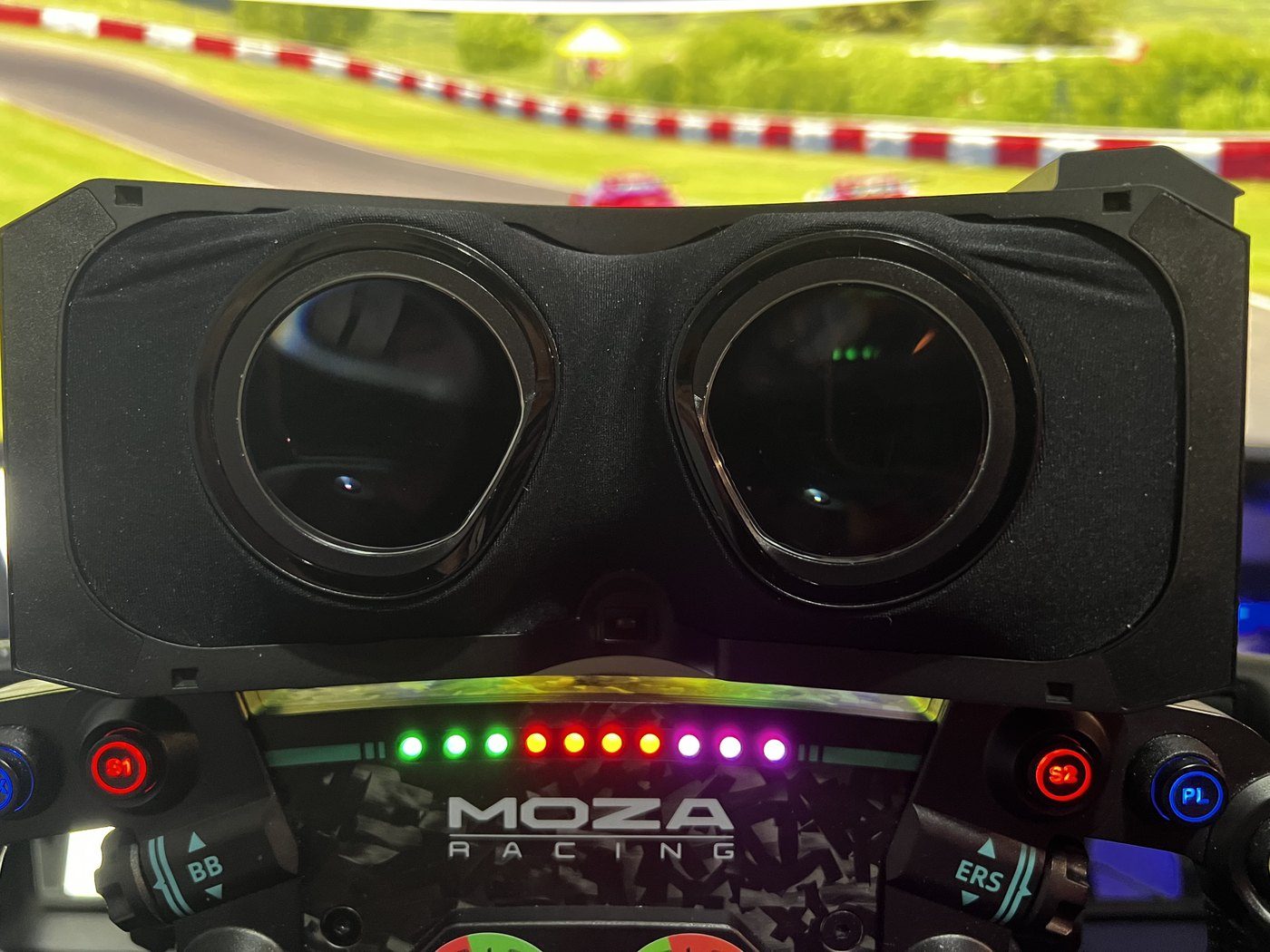
The halo that isn't a fault. On the QLED panels, a glow around bright objects on a dark background — headlights, lit dials, a night race under floodlights — is mini-LED local dimming behaving normally, not a defect. Pimax Play gives you control over it; turn it down or off if it distracts you. Micro-OLED panels light per-pixel and don't show it at all, which is a large part of why night racing feels different on a Dream Air.
5 // The performance baseline
Set these five things once, in this order, before you start chasing in-game graphics settings. Nothing you do in the sim's own menu will rescue a rig that has these wrong.
Pimax Play, General tab, OpenXR Runtime. iRacing, ACC, Assetto Corsa EVO, MSFS and DCS all run native OpenXR, and taking SteamVR's compositor out of the pipeline is usually the single biggest gain available. Automobilista 2 is the notable one that may still want SteamVR. Re-check this setting after any Pimax Play or SteamVR update — it can get flipped back.
Set inside Pimax Play. Dynamic on anything with eye tracking; fixed on the Crystal Light, which softens only the lens edges you aren't looking through anyway. This is the biggest free frame rate on the list and there is no reason to leave it off.
Reprojection halves your real frame rate and smears exactly what you need to be reading — trackside fences, braking boards, the car you're side by side with. You are better off dropping shadows or MSAA and holding a genuine 72 or 90Hz.
Pimax Play or the game — never both. Two multipliers stack into a resolution no GPU on earth will render, and the symptom is a mysteriously terrible frame rate on a card that should walk it.
With the runtime, foveation and resolution right, in-game settings behave predictably. Change one thing at a time and log the result.
Worth knowing in v2.xThe 2.0 releases added advanced Quad View adjustment, advanced FOV cropping, and a Wide FOV mode for the Crystal Light and Dream Air, plus custom button mapping for recentre, screen on/off and passthrough. If you're following an older guide — mine included — that told you to go elsewhere for these, they now live in Pimax Play.
The fix list
Find your symptom. Work down the steps in order — they're sorted by how often they turn out to be the answer, not by how clever they are.
The thirty-second checks
Run these before anything else. They resolve a large share of detection and black-screen reports on their own, and they cost you almost nothing.
- Re-seat the DisplayPort cable at the headset end until it clicks.
- Hit Restart Service in Pimax Play.
- Move the headset to a rear motherboard USB port on its own.
- Confirm you're on the current Pimax Play, not the one you installed last year.
- Confirm your GPU driver is above the published floor (NVIDIA 576.80 / AMD 25.8.1).
- Run Device Diagnostics in Pimax Play and read what it flags.
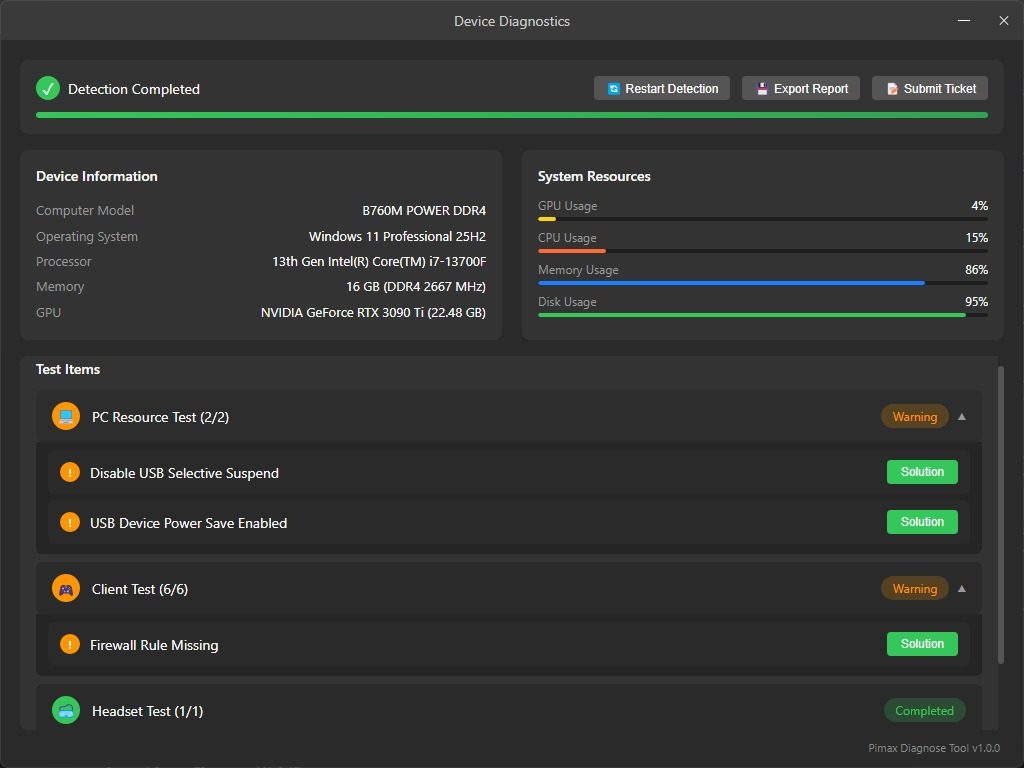
What the diagnostic keeps findingThree flags come up over and over, and all three are Windows rather than Pimax. USB Selective Suspend and USB device power saving let Windows put the headset's USB connection to sleep to save power on a machine that's plugged into the wall and pulling 400 watts — turn both off. A missing firewall rule blocks the Pimax service from talking to the client, which shows up as a headset that never finishes connecting. Each has a Solution button next to it; use them.
Pimax Play won't detect the headset
Likely cause — a slightly unseated DP plug, a hung background service, or USB endpoint exhaustion.
- Re-seat the DisplayPort connector at the headset end until it clicks.
- Press Restart Service in Pimax Play.
- If that fails: end
Pimax Play.exe,pi_server.exeandPiserviceLauncherin Task Manager, then relaunch Pimax Play as administrator. - Still nothing: unplug every non-essential USB device on the rig, reboot, and plug the headset into a dedicated rear port. If it appears, you had endpoint saturation — reintroduce peripherals one at a time across different controllers.
- Clear out ghost USB devices. Years of plugging kit in and out leaves greyed-out phantom entries consuming resources; a tool like USBDeview, run as administrator, will show and remove them.
Black screen, but Pimax Play says it's connected
Likely cause — nearly always the panels sleeping and failing to wake, not a dead display.
- Set Screen Timeout to 20 minutes in Device Settings — the longest option there. Fixes the majority outright.
- Check you aren't running OpenXR Toolkit alongside Quad Views foveated rendering. The Toolkit doesn't support stereo Quad Views and the result is an instant black screen. Uninstall it and let Pimax Play handle foveation.
- Turn Smart Smoothing off. If your GPU can't hold half the refresh rate with it on, you get a flicker to black that looks like a panel fault. Cap your frame rate in the Nvidia Control Panel instead.
- Only once all three are ruled out is it worth suspecting the hardware.
No DisplayPort signal / connection error
Likely cause — how the headset is wired to the GPU, ninety per cent of the time.
- Desktop: straight into the graphics card, not a motherboard video output. HDMI won't do.
- Laptop: force discrete-GPU-only in BIOS or the vendor control panel so the port isn't routed through the integrated graphics.
- Swap to the short stock copper cable as a test. If copper is stable and fibre has failed internally.
- Dream Air: no extensions, primary GPU DisplayPort, USB pigtail into a USB 3.2 port, and don't let the connector take a twist.
Firmware update stuck or failed
Likely cause — the headset going to sleep mid-flash, or a wheelbase spiking the USB bus.
- Before you start: tape over the internal proximity sensor between the lenses so the headset believes it's being worn. Leave it there until Pimax Play explicitly confirms success.
- Physically unplug your wheelbase and any active pedals. A direct drive base spiking the bus mid-flash will interrupt the push.
- Expect it to take ten to fifteen minutes. Do not touch power, do not switch modes, do not assume it has hung at minute six.
- If it genuinely failed and you're seeing a flashing multi-colour LED, that's recovery mode.
NoteA manual DFU recovery needs the exact firmware file for your exact model, and flashing the wrong model's firmware bricks the headset permanently. If you are not completely certain, raise a support ticket instead of pushing on. This is the one place in this guide where guessing has no undo.
View drifts, judders, or won't hold centre
Likely cause — inside-out cameras with nothing to lock onto, the classic dark-room sim racing failure.
- Put some even ambient light in the room. A pitch-black cockpit lit only by triple-monitor glow starves the cameras completely.
- Give bare walls something to see: posters, shelving, anything with contrast. If you race in the dark by preference, IR illuminators do the job without lighting the room.
- Clear the saved environment data in Room Settings and run setup again in the improved lighting.
- Run Device Diagnostic in Pimax Play — it will flag and re-enable a camera feed that's dropped out.
- Lighthouse users: cover mirrors and windows so reflections don't confuse the base stations, and check the faceplate is fully screwed down.
- Accept that some drift over a two-hour stint is normal for any inside-out headset. Bind the sim's own recentre (iRacing's Recenter HMD, MSFS's Reset VR view) to a wheel button and reset on the fly rather than fighting it.
Terrible frame rate on a strong GPU
Likely cause — wrong runtime, foveation off, or two pixel density multipliers stacking.
- Check the OpenXR runtime is set to Pimax OpenXR in Pimax Play's General tab. A Pimax Play or SteamVR update can silently flip it back — if a sim suddenly feels heavier than it did last week, look here first.
- Confirm foveated rendering is actually on, and that eye tracking is calibrated on headsets that use it. Failed eye tracking calibration quietly disables dynamic foveation and your frames go with it.
- Turn Smart Smoothing off.
- Check you haven't set pixel density in both Pimax Play and the game. They multiply.
- Confirm the legacy standalone PimaxXR app is uninstalled — it and Pimax Play write the same Windows setting and will keep overwriting each other.
Eye tracking stops calibrating
Likely cause — dirt on the infrared sensors, nine times out of ten.
- Wipe the plastic rings around the lenses with a clean, dry microfibre cloth. The IR sensors sit in there and sweat, skin oil and face-gasket residue blind them.
- Restart Pimax Play and re-run calibration in your normal racing light.
- Worth doing on a schedule rather than waiting for it to fail — when eye tracking goes, dynamic foveated rendering goes with it and the first thing you notice is a frame rate drop you can't explain.
Audio drops out or only plays one side
Likely cause — Windows resetting the output device, or loose strap screws on off-ear audio.
- Click the speaker icon in the taskbar and set output back to the Pimax audio device. Pimax Play has a habit of resetting the endpoint on boot.
- On off-ear strap audio, sound passes through pogo pins — a loose screw where the strap meets the headset body cuts one channel. Tighten both.
- Controllers that won't pair: Pair New Controller in Pimax Play, or connect over USB-C to force a firmware handshake.
When it's actually broken
Most of what gets called a hardware failure isn't. But a few things genuinely are, and there's no sense grinding through software fixes for a fortnight on a headset that needs returning.
Stop troubleshooting and raise a ticket if:
- A DFU flash has failed and left the headset unresponsive.
- Dead pixels or lines survive a clean driver and Pimax Play reinstall.
- The connector or cable is physically damaged and a known-good spare doesn't fix it.
- You're being asked to flash firmware manually and you aren't certain of the exact file.
Make the ticket count
Support move much faster on a ticket that arrives complete. Before you write it, gather:
- Headset model and, on a Crystal Super, which optical engine is fitted.
- Pimax Play version and current firmware version.
- GPU and driver version.
- Order details.
- A short phone video of the fault happening. This is the big one — thirty seconds of footage beats three paragraphs of description every time.
- A one-line list of what you've already tried, so nobody sends you round the loop you've just done.
- Exported logs from Pimax Play.
Keep the original box and cables. Warranty returns go far more smoothly with them, and the stock copper cable is your diagnostic control for every cable question in this guide.
Still stuck? Bring it to the Discord
Post your headset, your Pimax Play version, your GPU and driver version, and what you've already tried from this guide — usually enough for someone to spot it inside an hour. There are people in there running every headset in the table above, and this guide is just one of the technical references that live there — alongside the PrimaShock crop & supersample calculators and step-by-step guides for getting the most out of a Pimax on a sim rig.
Quick reference — screenshot this
Everything from Part One on one page. If someone in the Discord asks you to "check your settings", this is the list they mean.
| Setting | Where | Set it to |
|---|---|---|
| GPU driver | NVIDIA / AMD | 576.80+ / 25.8.1+ |
| Pimax Play | pimax.com/support/downloads | Current release |
| Legacy PimaxXR app | Windows apps | Uninstalled |
| OpenXR Toolkit | Windows apps | Uninstalled |
| OpenXR runtime | Pimax Play > General | Pimax OpenXR |
| Foveated rendering | Pimax Play | Dynamic (fixed on Light) |
| Eye tracking | Device Settings | Calibrated |
| Smart Smoothing | Pimax Play | Off |
| Screen timeout | Device Settings | 20 min (longest option) |
| Pixel density | Pimax Play OR the sim | One place only |
| USB Selective Suspend | Windows power options | Disabled |
| USB root hub power saving | Device Manager | Unticked |
| Headset USB | Rear motherboard port | Nothing else shared |
| DisplayPort | Discrete GPU directly | Clicked in at headset end |
The order to try things inRe-seat DP at the headset end → Restart Service → dedicated rear USB port → update Pimax Play → check the runtime → then, and only then, start suspecting hardware.
Edition 1.0, September 2026. Written against Pimax Play v2.0.3. Pimax move quickly — menu locations and version-specific behaviour change between releases. If something in here no longer matches what you're seeing, say so in the Discord and it goes into the next edition with a credit.
Disclosure: I'm an approved Pimax Sim Racing Ambassador and use the discount code NLSimgaming — it saves you money and earns the channel a commission. It doesn't change what's in this guide.
Setting up a Pimax on your rig?
Approved Pimax Sim Racing Ambassador — code NLSimgaming for a discount on the Crystal and Dream Air range.