Home / NextLevelDetect
Free for Pimax owners
NextLevelDetect: the free Pimax diagnostic and fix tool
A Windows app that scans your PC for the things that break Pimax headsets, fixes the safe ones with one click, and can undo every change it makes. Built by Next Level Sim Gaming and free for every Pimax owner.
Get it free
NextLevelDetect is distributed through the Downloads section of the Next Level Sim Gaming Discord. Join the server, open Downloads and grab the installer. It is completely free for all Pimax owners.
Works with Pimax Crystal, Crystal Light, Crystal Super and Dream Air / Dream Air SE on Windows 10 and 11 (64-bit).
What's new in 0.3.0
- E5 eye tracker devices check. Finds the Dream Air fault where part of the eye tracker fails to start (Code 43) and DFR stops, and fixes it.
- NLSG Helper reads your export. Post your report in the NextLevelDetect channel and the bot replies with what to do first.
- Connect Claude MCP. Link the app to Claude Desktop so Claude can run the scan and talk you through the fixes.
What it does
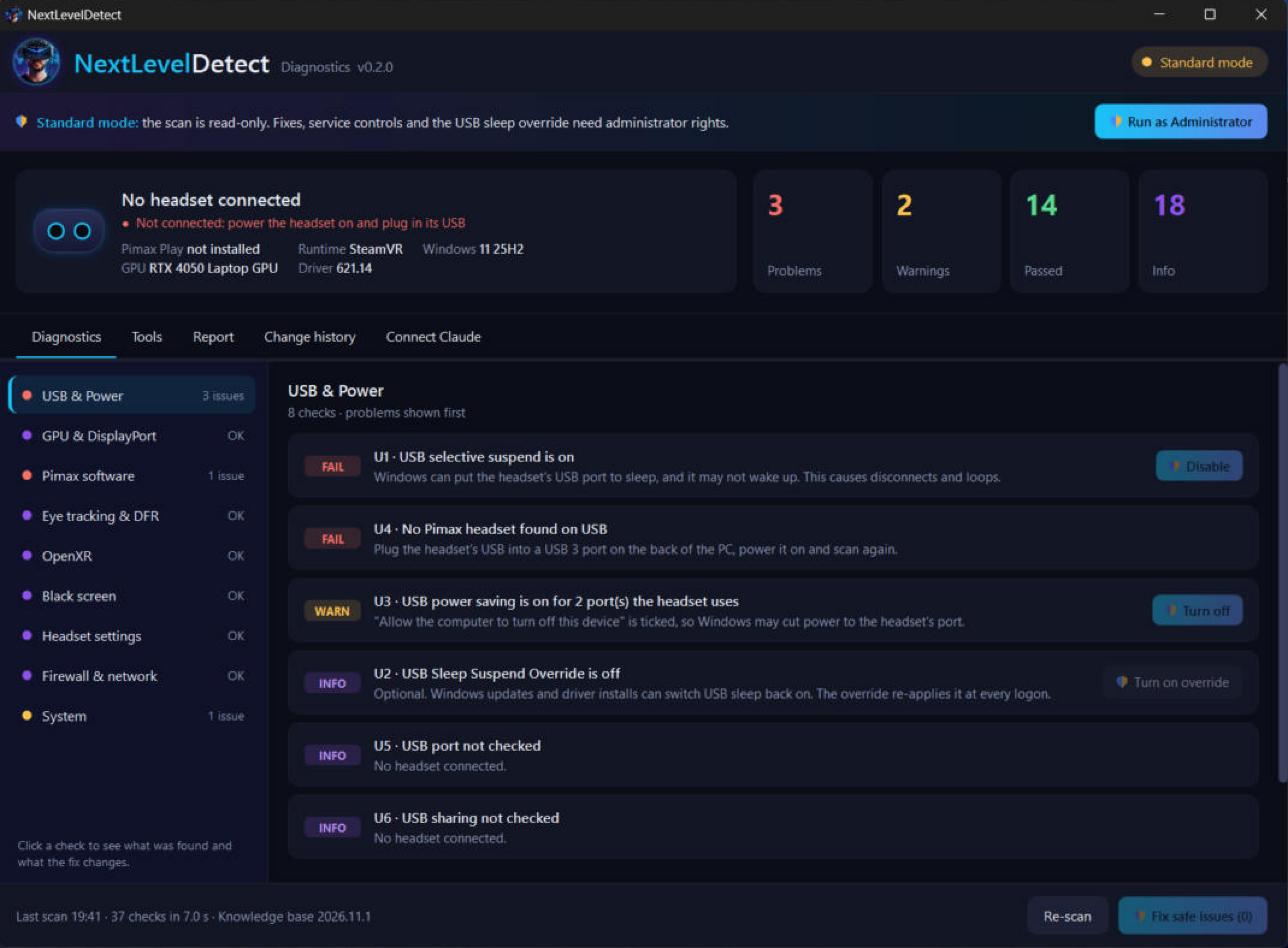
NextLevelDetect runs 38 checks across USB and power, GPU and DisplayPort, Pimax software, eye tracking and DFR, OpenXR, black screens, headset settings, firewall and network, and Windows. It works like Pimax Play's Device Diagnostic, but also looks at Windows, USB, the GPU, OpenXR, the firewall and your settings, which is where most Pimax problems turn out to live.
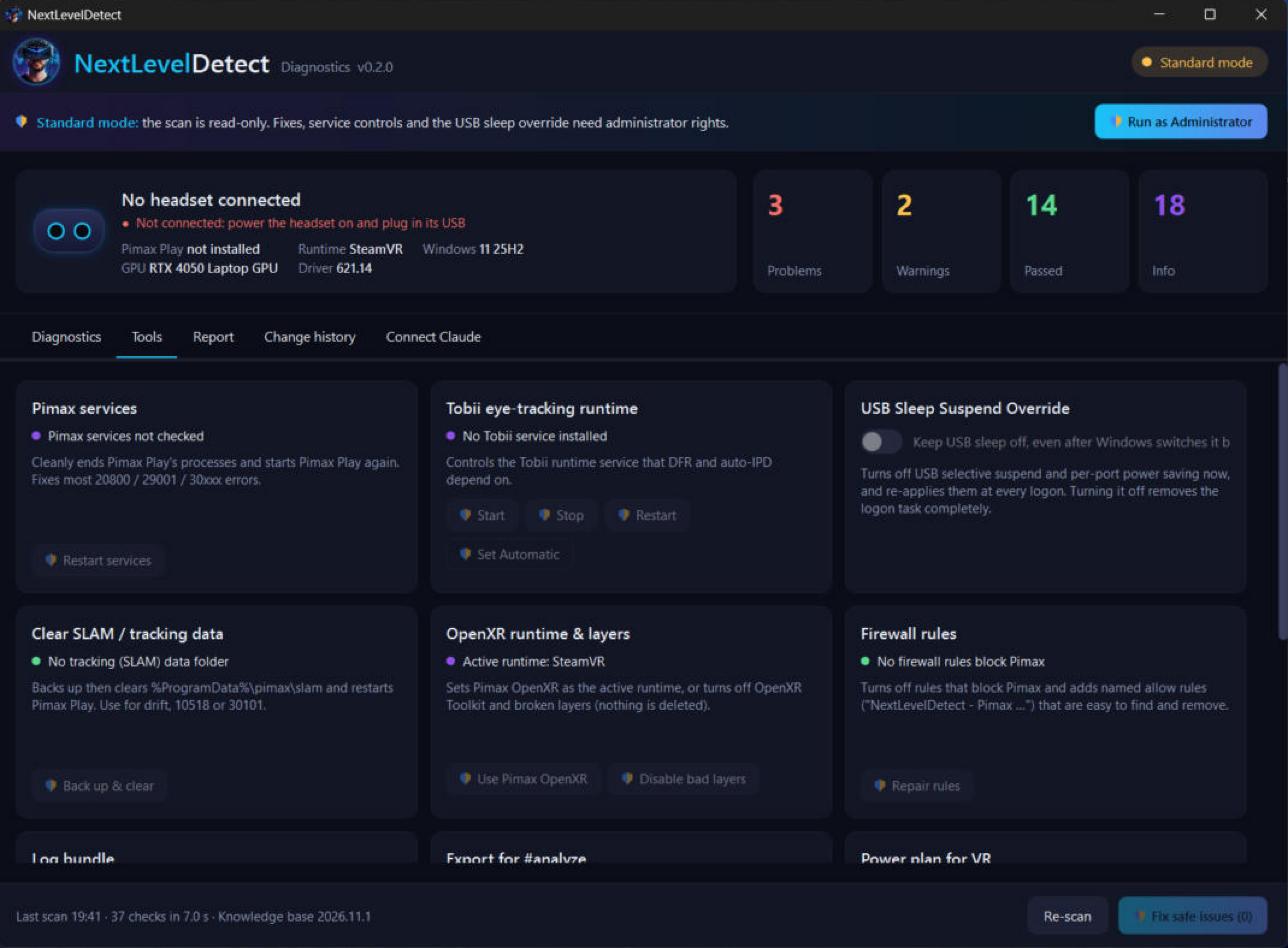
Problems are shown first, each with a plain-English explanation. Safe problems get a one-click fix. Medium-risk changes always ask you first.
Tools for the usual suspects
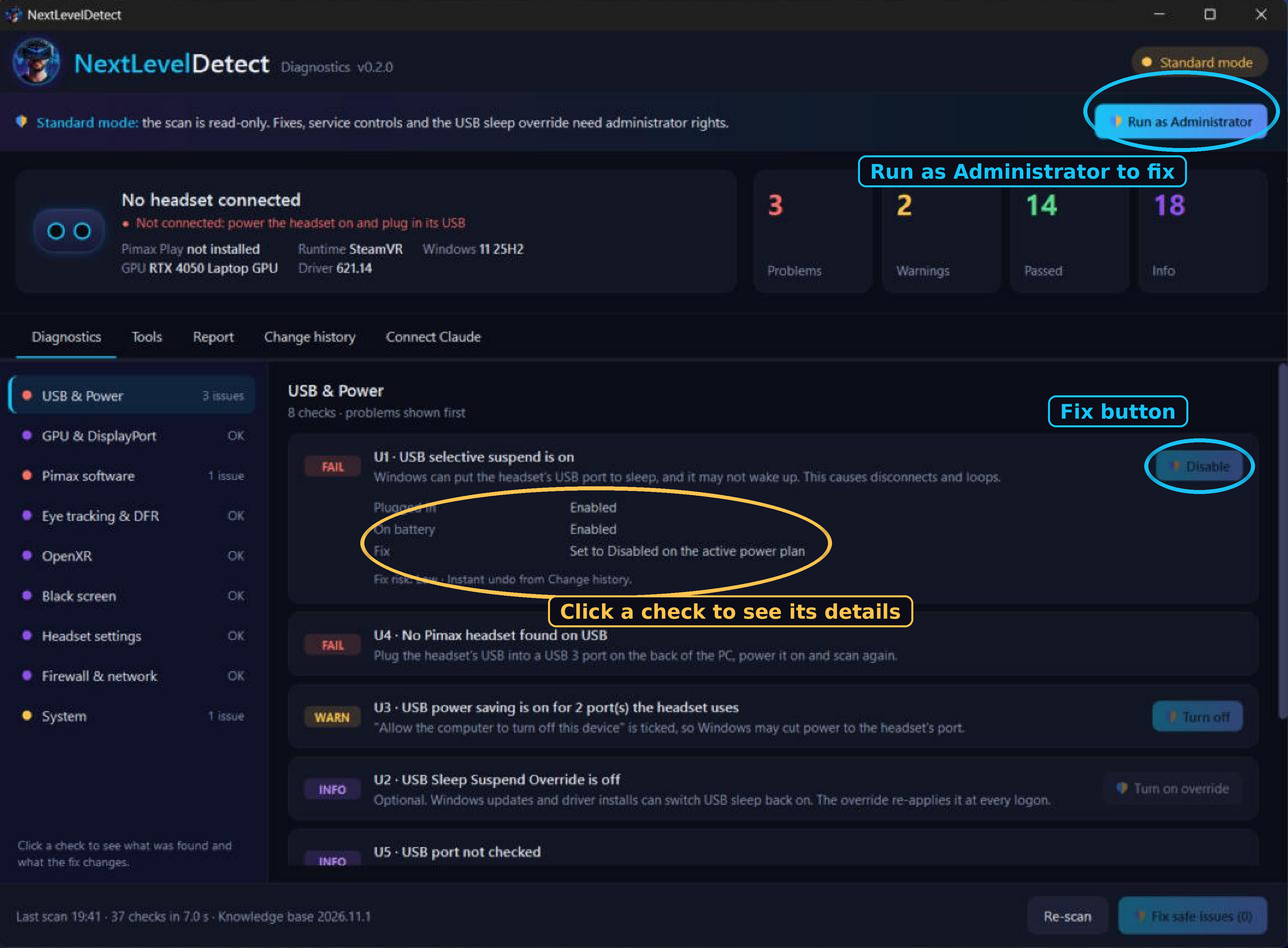
The Tools tab holds the fixes people ask about most: restarting Pimax services, controlling the Tobii eye-tracking runtime, the USB sleep override, clearing SLAM tracking data, choosing the OpenXR runtime and layers, repairing firewall rules, building a log bundle and setting a power plan for VR.
Example checks
| CHECK | WHAT IT CAN DO | WHY IT MATTERS |
|---|---|---|
| USB selective suspend | Disable | Windows can put the headset USB port to sleep and it may not wake up |
| Dedicated GPU present | Advice | Makes sure the headset is not running on the wrong graphics chip |
| Pimax Play version and known-bad builds | Advice | Warns about Pimax Play builds with known problems |
| EyeChip device present | Restart device | Eye tracking and DFR need the eye tracker device running |
| Active OpenXR runtime is Pimax OpenXR | Switch | Sets Pimax OpenXR as the active runtime |
| Headset screen timeout and sleep | Advice | Screen timeout settings that blank the headset |
| Render quality for your GPU tier | Advice | Flags settings too heavy for your graphics card |
| Firewall rules blocking Pimax | Turn off rules (asks first) | Removes rules that stop Pimax Play and its services talking |
That is eight of the 38. Every check says what it found, what the fix changes and how risky it is before you click anything.
Get your PC analysed in the Discord
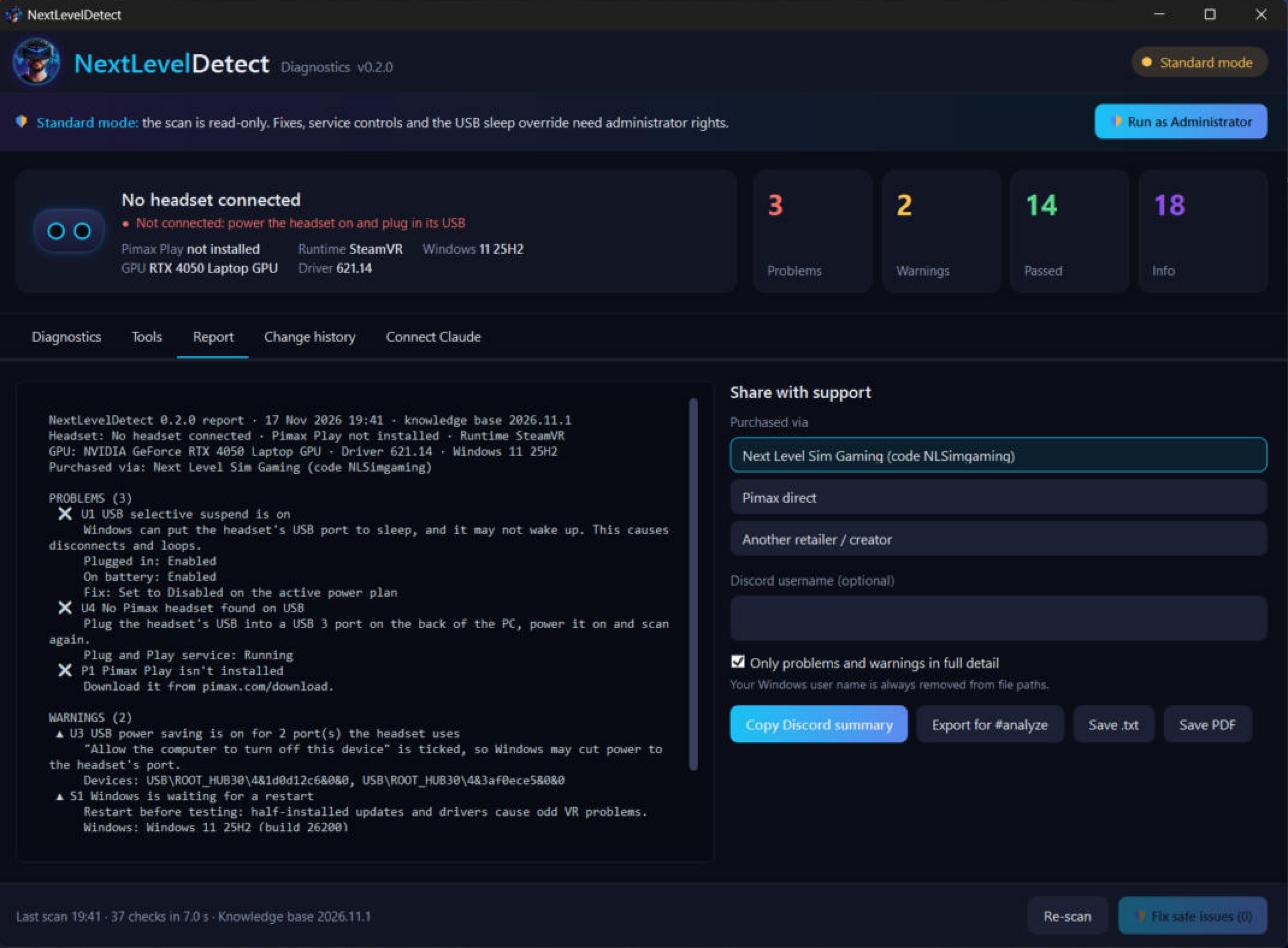
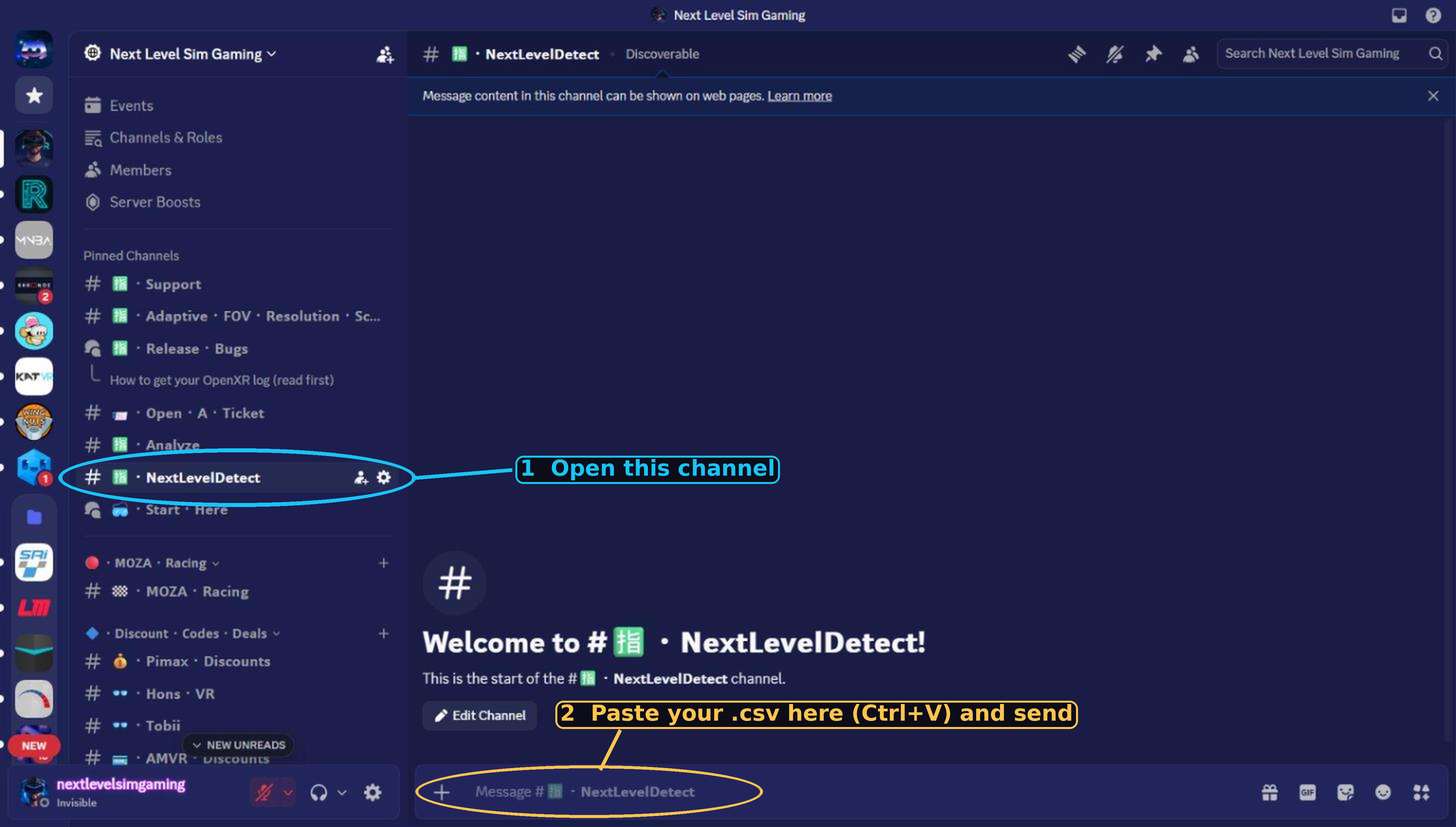
If the fix is not obvious, export your report and let the community and NLSG Helper take a look. The Report tab shows the full report on the left and sharing options on the right: copy a Discord summary, export for the NextLevelDetect channel, or save as text or PDF. Your Windows user name is always removed from file paths.
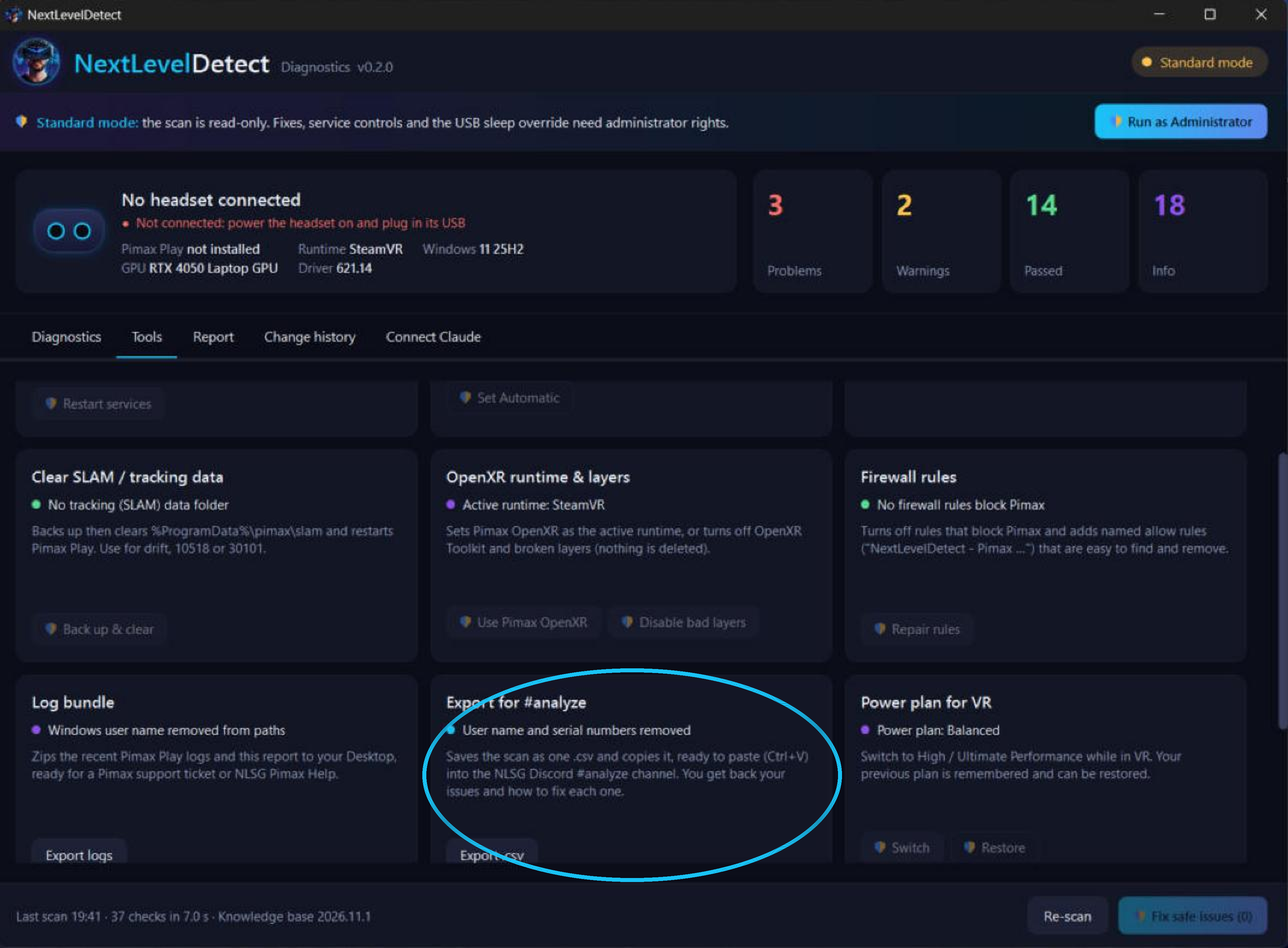
- In NextLevelDetect, click Export for #analyze to create a .csv file.
- Open the NextLevelDetect channel on the Next Level Sim Gaming Discord.
- Paste the .csv into the channel (Ctrl+V) and send.
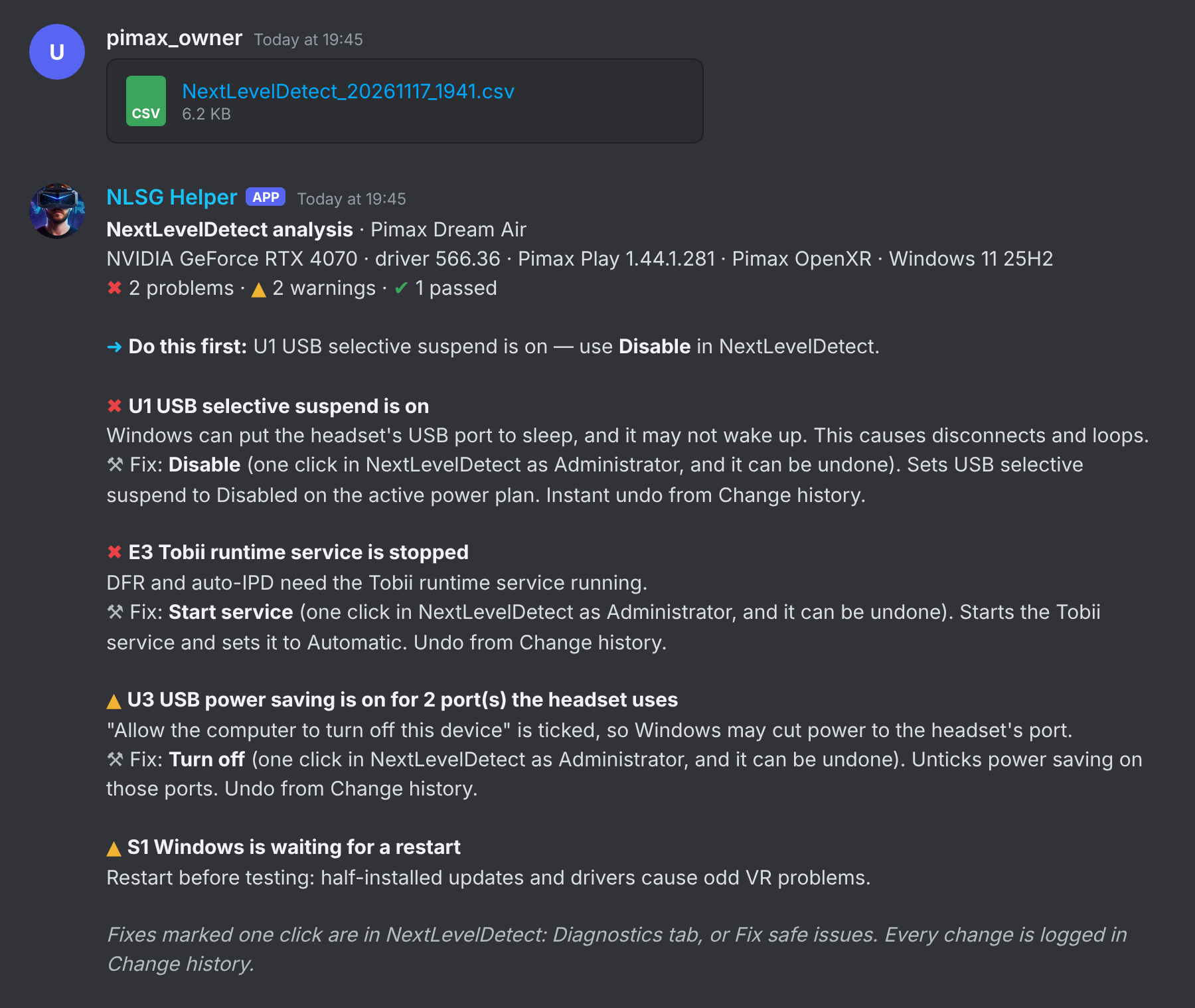
- NLSG Helper reads it and replies with your problems, warnings and what to do first.
Connect Claude MCP
Connect Claude links NextLevelDetect to Claude Desktop (it works as an MCP server), so Claude can run the scan, read your Pimax Play logs and talk you through what is wrong, one step at a time. It uses your own Claude account. You need Claude Desktop for Windows (claude.ai/download) and the installer version of NextLevelDetect.
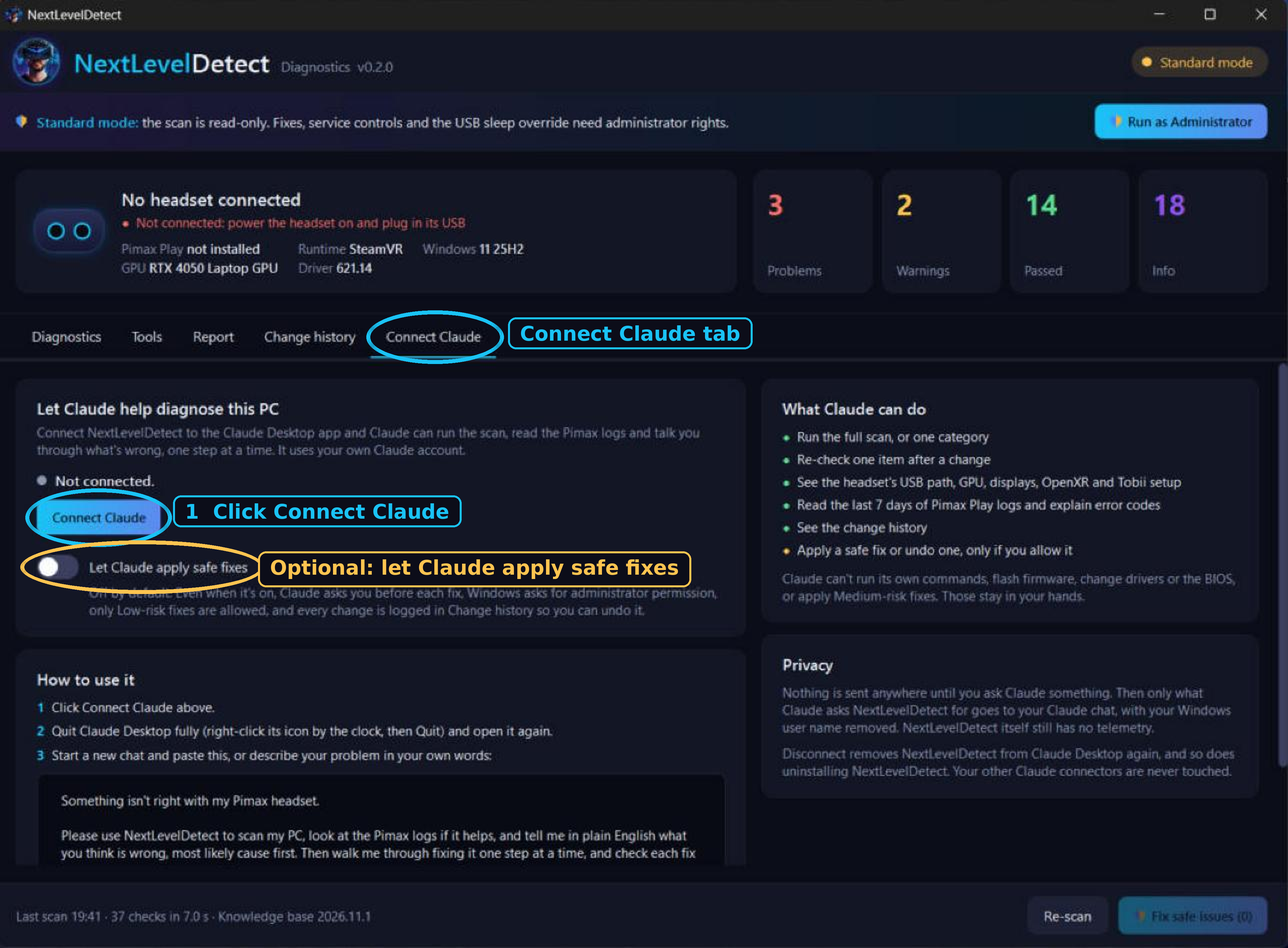
- Open the Connect Claude tab and click Connect Claude.
- Quit Claude Desktop fully (right-click its icon by the clock, then Quit) and open it again.
- Start a new chat and describe your Pimax problem in your own words, or use the prompt shown in the app.
Claude can run the full scan or one category, re-check an item after a change, see the headset's USB path, GPU, displays, OpenXR and Tobii setup, read the last seven days of Pimax Play logs, and see your change history. If you switch on the optional setting, it can apply a safe fix or undo one, but only if you allow it.
Claude can only use the listed NextLevelDetect tools. It cannot run its own commands, flash firmware, change drivers or the BIOS, or apply medium-risk fixes. Nothing is sent anywhere until you ask Claude something, and your Windows user name is removed first. Disconnecting, or uninstalling NextLevelDetect, removes the link and leaves your other Claude connectors alone.
Change history and undo
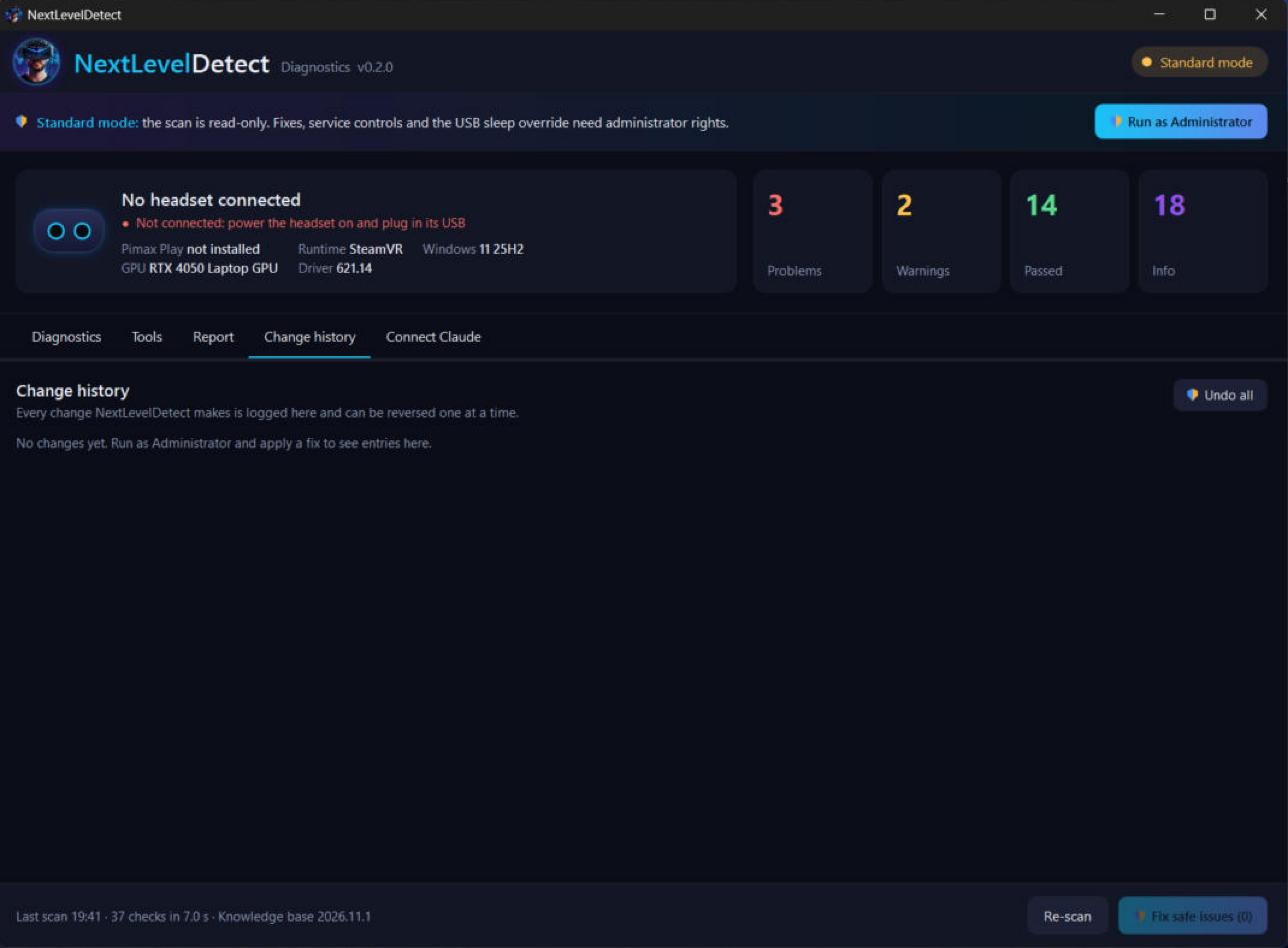
Every change NextLevelDetect makes is logged and can be reversed one at a time, or all at once with Undo all.
Install
- Option A, installer (recommended).
NextLevelDetect-Setup-0.3.0.exeinstalls toC:\Program Files\NextLevelDetect. You need this version for Connect Claude. - Option B, portable.
NextLevelDetect-0.3.0.exeruns on its own. No .NET install is needed.
Both are signed by Next Level Sim Gaming. Windows may show a SmartScreen prompt the first time you run an unfamiliar app, so check the publisher before you continue. Upgrading from 0.1 or 0.2? Run the 0.3 installer over the top. Your history, backups and USB override are kept.
Scanning works in Standard mode and is read-only. To apply fixes, use Run as Administrator.
Privacy and safety
- No telemetry, no account, and no data sent anywhere. The only internet access is a check that Pimax's servers answer.
- Windows user names are stripped from exports, reports and logs. USB serial numbers are also removed from exports and from anything Claude sees.
- It never flashes firmware, installs drivers or changes the BIOS.
- It records the old value before changing anything, and backs up anything it clears.
Questions
Is NextLevelDetect really free?
Yes. It is free for every Pimax owner. There is no account, no subscription and no trial. You get it from the Downloads section of the Next Level Sim Gaming Discord.
Which headsets does it work with?
Pimax Crystal, Crystal Light, Crystal Super and Dream Air / Dream Air SE, on Windows 10 and 11 (64-bit).
Does it send my data anywhere?
No. There is no telemetry and no account. The only internet access is a check that Pimax's servers answer. Nothing leaves your PC unless you choose to share a report or let Claude read your results.
Do I need to run it as Administrator?
Scanning works in Standard mode and is read-only. Fixes, service controls and the USB sleep override need Administrator rights, which is what the Run as Administrator button is for.
Can I undo a fix?
Yes. Every change is logged in Change history with its own Undo button, and the app records the old value before it changes anything.
Will it flash firmware, install drivers or change my BIOS?
Never. NextLevelDetect does not flash firmware, install drivers or touch the BIOS.
What if the fix is not on the list?
Export your report and post it in the NextLevelDetect channel on the Discord. NLSG Helper reads it and replies with what to do first.
Want it? It's free
Join the Next Level Sim Gaming Discord, open the Downloads section and install NextLevelDetect. If something is still wrong after the scan, post your export in the NextLevelDetect channel.